If you build WordPress sites in Local by Flywheel, you’ve probably done this dance: open wp-config.php, flip WP_DEBUG to true, add the debug log line, save, reload, and then forget to undo it all later.
I kept running into it. Every time I needed debugging on, I had to edit wp-config directly, and that slowed down my development. Not being able to adjust PHP settings was another speed bump.
So I built the Local Debug Toolkit, an add-on that lives inside Local itself. It adds three tools to each site’s Tools tab.
Debug toggles and a log viewer
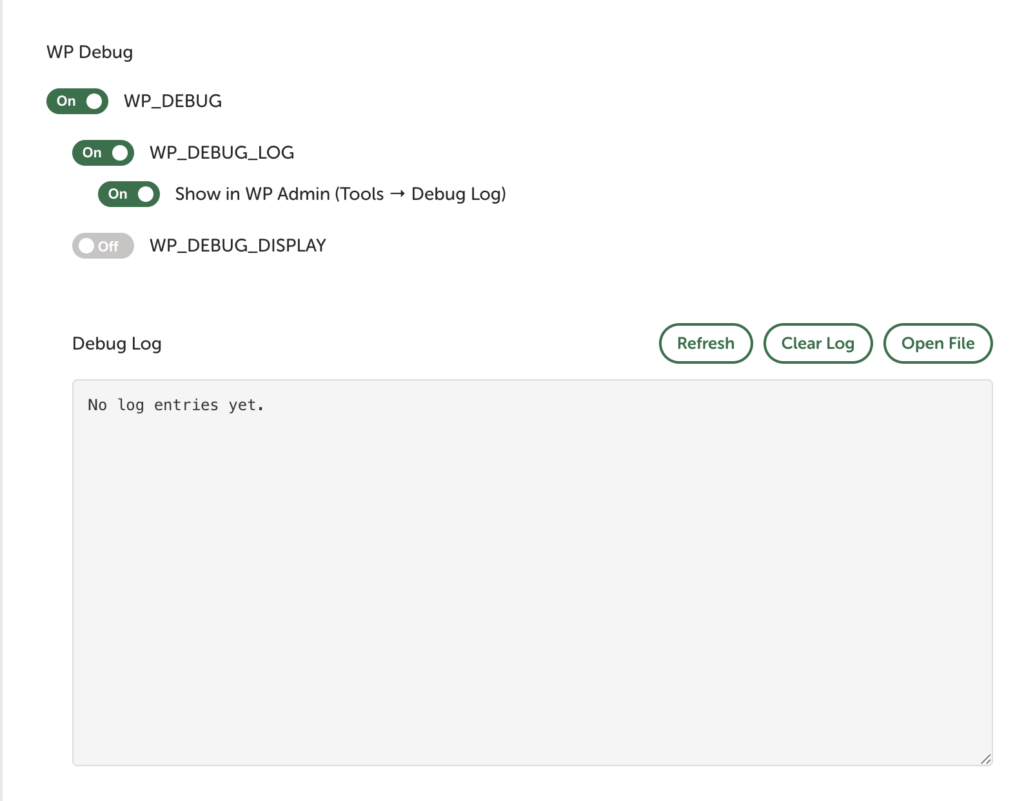
Switch WP_DEBUG, WP_DEBUG_LOG and WP_DEBUG_DISPLAY on and off with a click instead of editing a file. The debug log shows up right below the toggles, with Refresh, Clear Log and Open File buttons. Flip one more switch and the same log also appears in WP Admin under Tools → Debug Log.
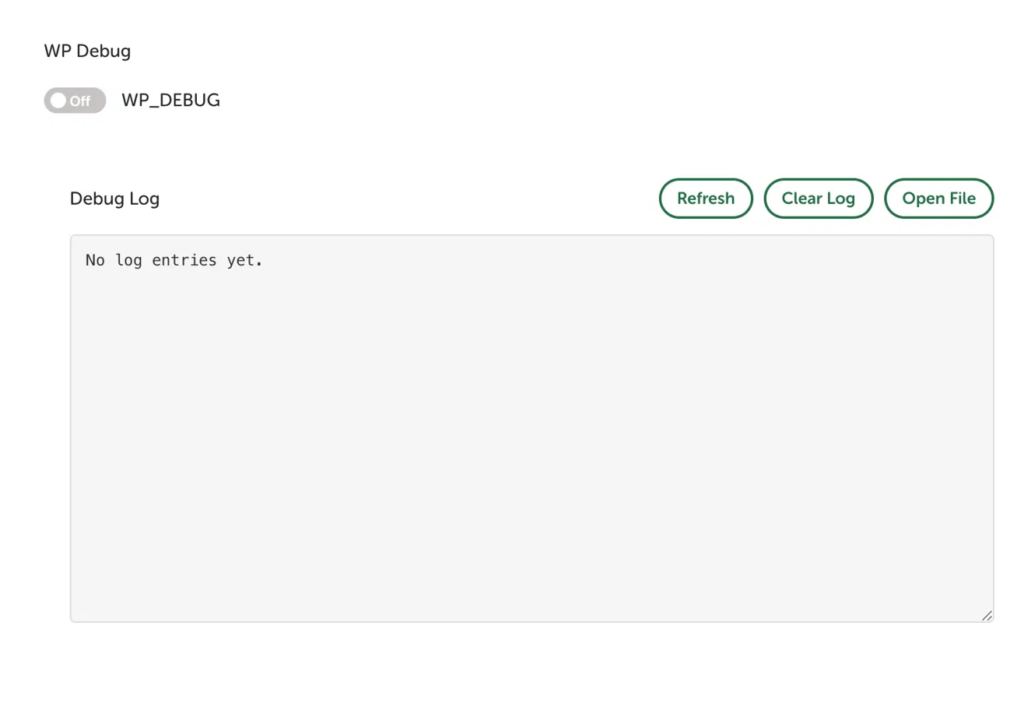
With WP_DEBUG off, the other toggles tuck themselves away so the panel stays tidy.
A wp-config.php editor
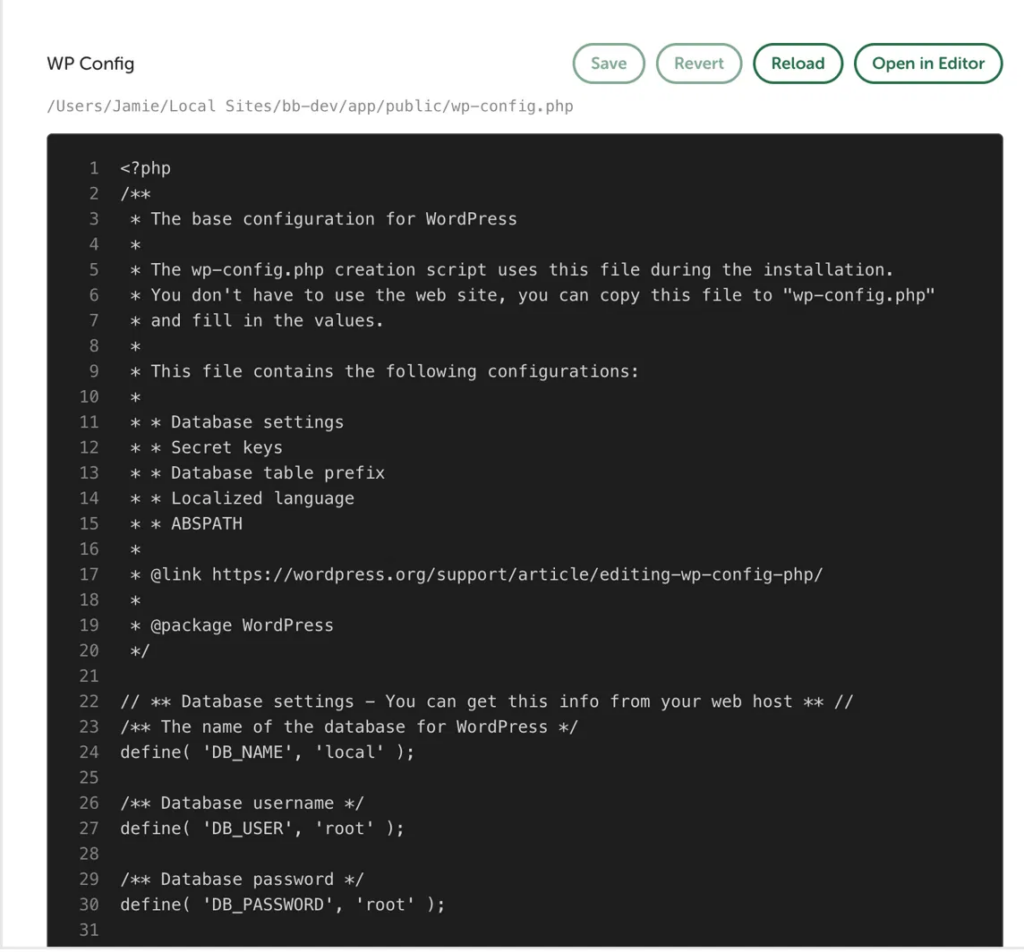
For anything beyond the toggles, edit wp-config.php directly from the toolkit. It takes an automatic backup before any change, and it has Save, Revert and Reload buttons, plus one to open the file in your default editor.
PHP settings
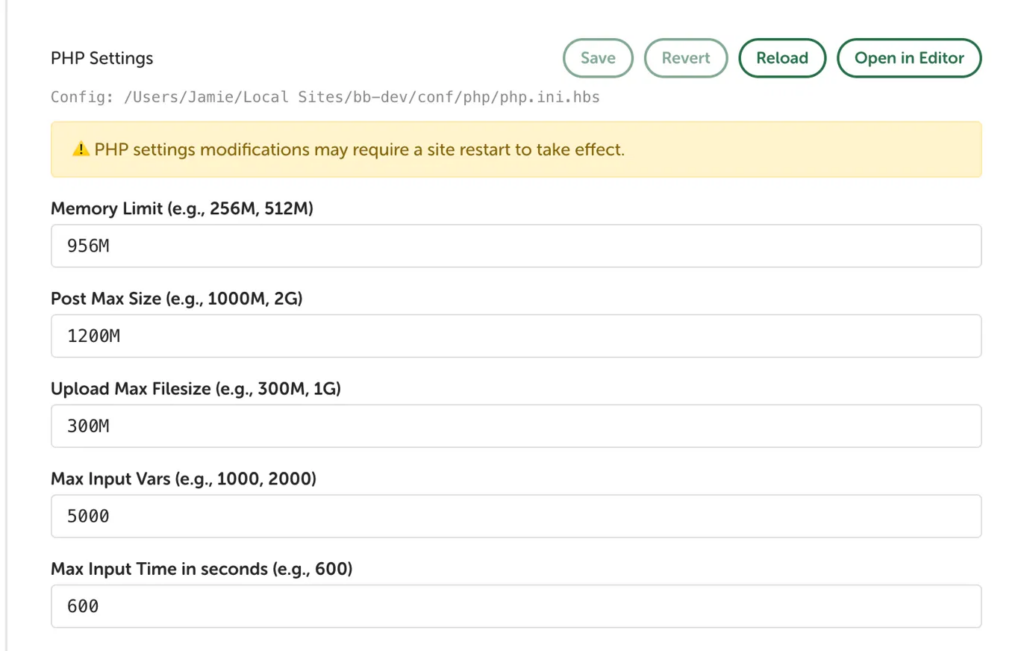
Adjust memory limit, post max size, upload max filesize, max input vars and max input time per site, without digging through config files. The values persist across restarts and show up in WordPress Site Health. PHP changes do need a site restart to take effect, and the panel reminds you.
Only the tools you want
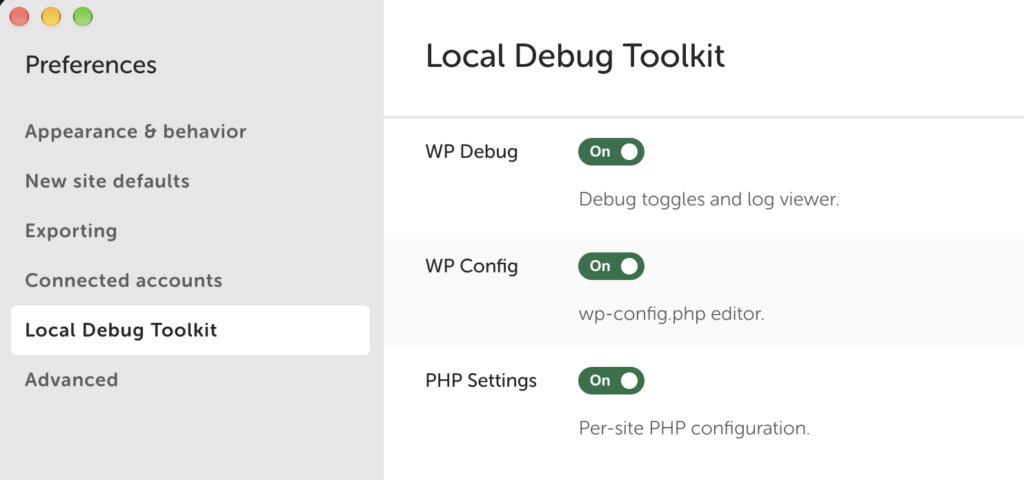
Under Preferences → Local Debug Toolkit you can choose which tools appear. They’re all on by default, and changes apply without restarting Local.
Try it
Download the latest release .tar.gz from the Releases page. In Local, go to Add-ons → Installed → Install from disk, pick the file, and restart Local. The source is on GitHub.
It’s a small tool that removes a small annoyance I hit constantly, and that’s my favorite kind of project.